

Installing Vectarine
Let’s see how to install Vectarine, and all the tools you’ll need for your game! We’ll also see how to create projects in Vectarine.
Installing Visual Studio Code
Section titled “Installing Visual Studio Code”Vectarine uses Luau for scripting. Luau is a programming language that is great for beginners as it is easy to learn, while still being a powerful language used by professionals all over the world.
You can use any text or code editor to edit .luau files, but for the best experience, I recommend using Visual Studio Code because:
- Visual Studio Code is the industry-standard for writing code.
- It’s free (and open-source).
- You’ll get autocompletion and error highlighting as you write which is super helpful!
- Your code can be automatically formatted when you save to remove extra spaces, and make it nice and organized.
Feel free to skip this step if you already have a code editor installed that you like and that is able to edit Luau.
Visual Studio Code can be extended with extensions using the Crate icon on the left side of the window.
I recommend installing the following extensions to make editing Luau easier, and having access to autocompletion:
- Luau Language Server: Provides autocompletion, type checking and error highlighting for Luau code. This is a must-have as it shows you available functions and their documentation as you type.
- StyLua: A code formatter for Luau. It automatically formats your code when you save the file, making it more readable and consistent. This is less important than Luau Language Server, but it can be nice to have.
When both extensions are installed, the code you will write later will be colored, errors will be highlighted, and you will see function suggestions when you type a dot after a module name:
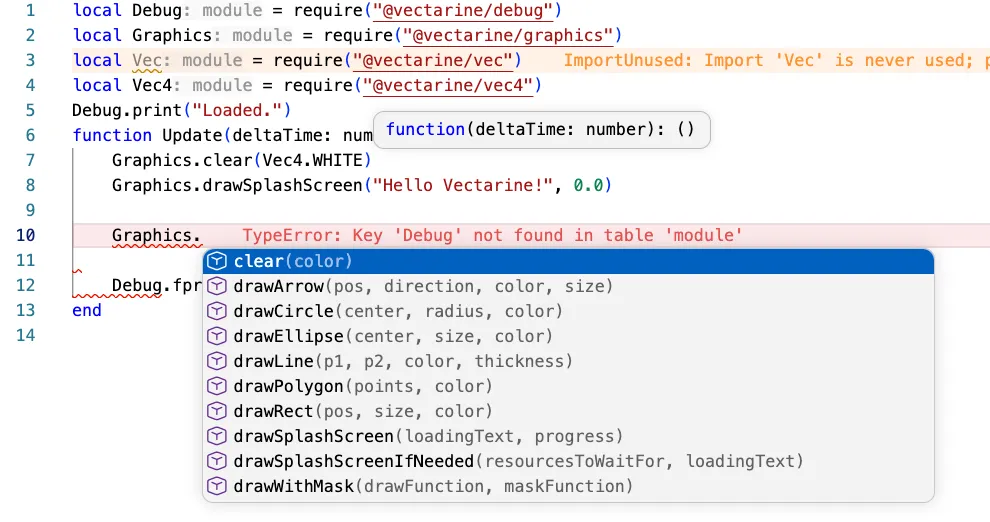
Don’t worry about the code in the screenshot for now, just know that having errors be highlighted and autocompletion is very useful.
Installing Vectarine
Section titled “Installing Vectarine”To install Vectarine, you can run the following command in a terminal depending on your platform:
How do I run a command in a terminal?
You need to open a Terminal application.
- On Windows, you can search for “Powershell” in the start menu.
- On Linux, you can search for “Terminal” in your applications.
- On Mac, you can search for “Terminal.app” in your Apps or in Spotlight.
A terminal looks like a black window with white text. You can type text in it and press
When a command is running, it can display (a lot of) text in the terminal to tell you what it is doing. It is a good idea to read the text to see if there are any errors or warnings.
Sometimes, a command asks you for input or confirmation. You can type your answer and press
You can copy and paste the command from this page into the terminal. On Linux, you might need to use
You need to use powershell, not cmd.exe.
irm https://vectarineengine.com/install_win.ps1 | iexcurl -fsSL https://vectarineengine.com/install_linux.sh | shcurl -fsSL https://vectarineengine.com/install_mac.sh | shAlternatively, if you prefer, you can download Vectarine from Github. In that case, you need to download the zip file for your platform.
You can unzip it anywhere you like and run the VectarineEditor executable to get started.
On MacOS, I get the message: “VectarineEditor.app” is damaged and can’t be opened, what should I do?
Congratulations! You have installed Vectarine! You can run it from the desktop shortcut on Windows, or from the Applications folder on macOS. On Linux, you can run it from the terminal by typing ./VectarineEditor in the terminal.
Creating a new project
Section titled “Creating a new project”Now that we have installed everything, let’s make a game.
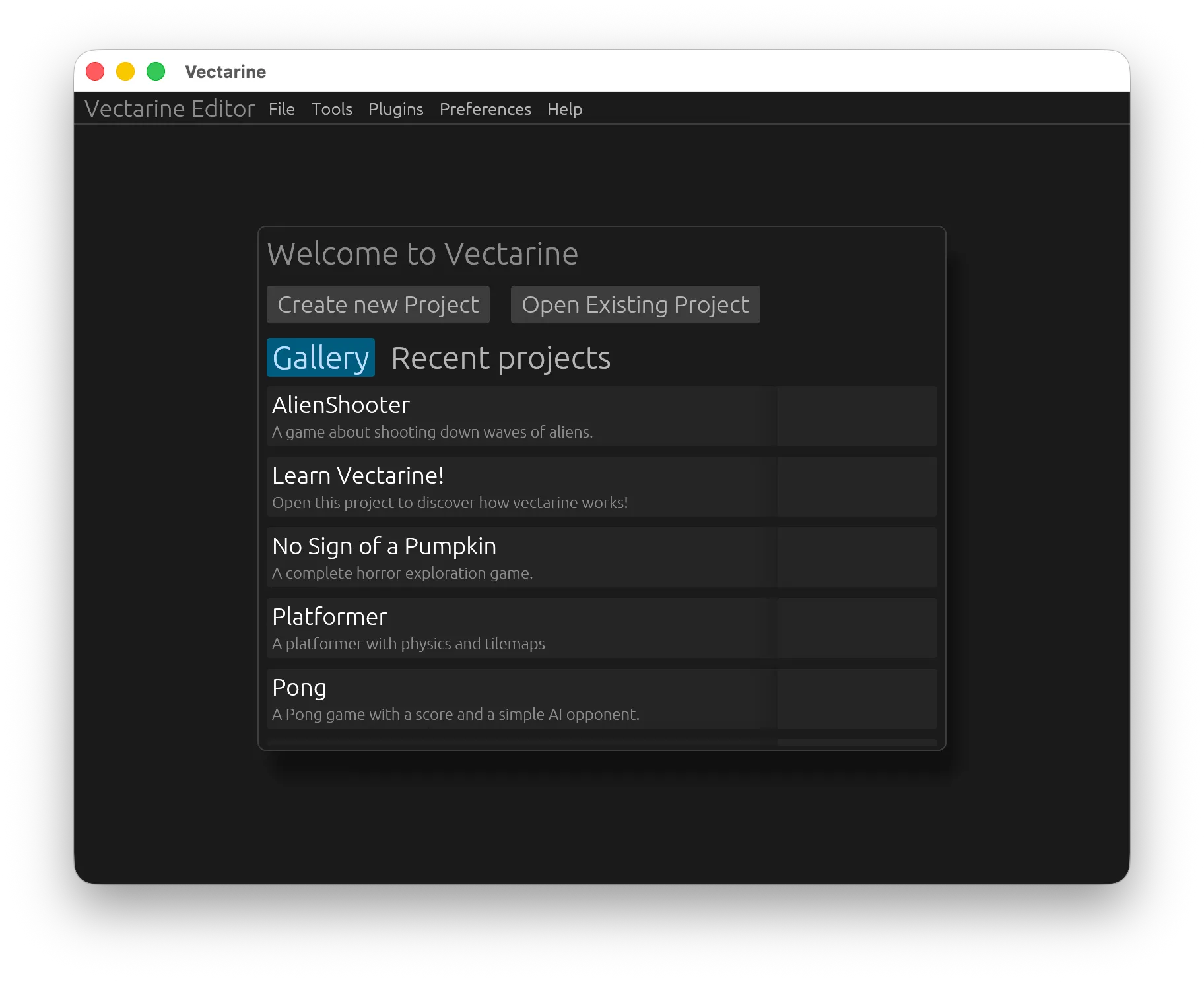
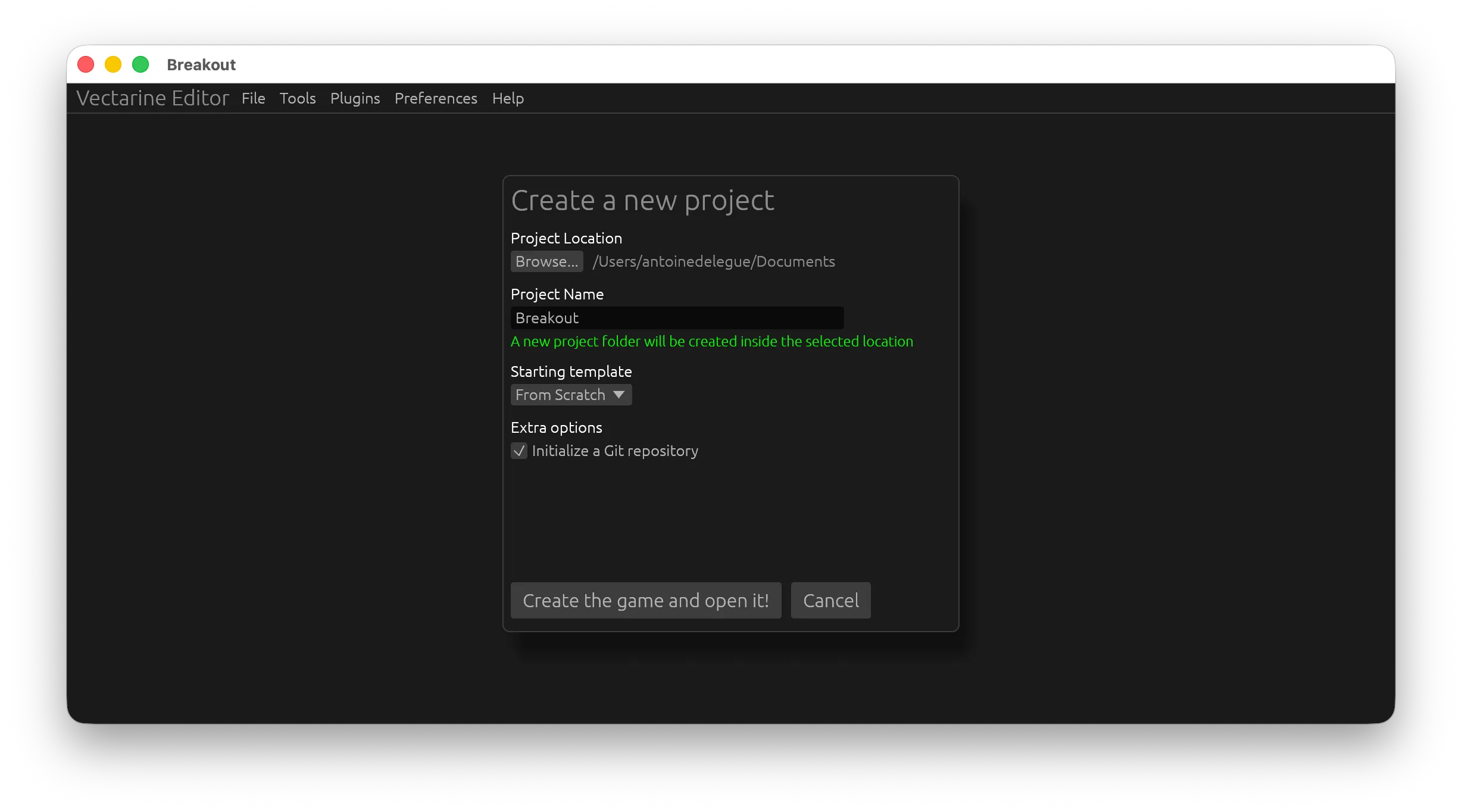
First, in the Vectarine editor, press Create a new project and select the location where you want to create your project (for example your Documents folder).
For the project name, I put “Breakout”. For the template, as we are learning Vectarine, we are doing things “From scratch”. Don’t worry, even the “From scratch” template has a few things to help us get going. Don’t worry about the other options and leave them as defaults.
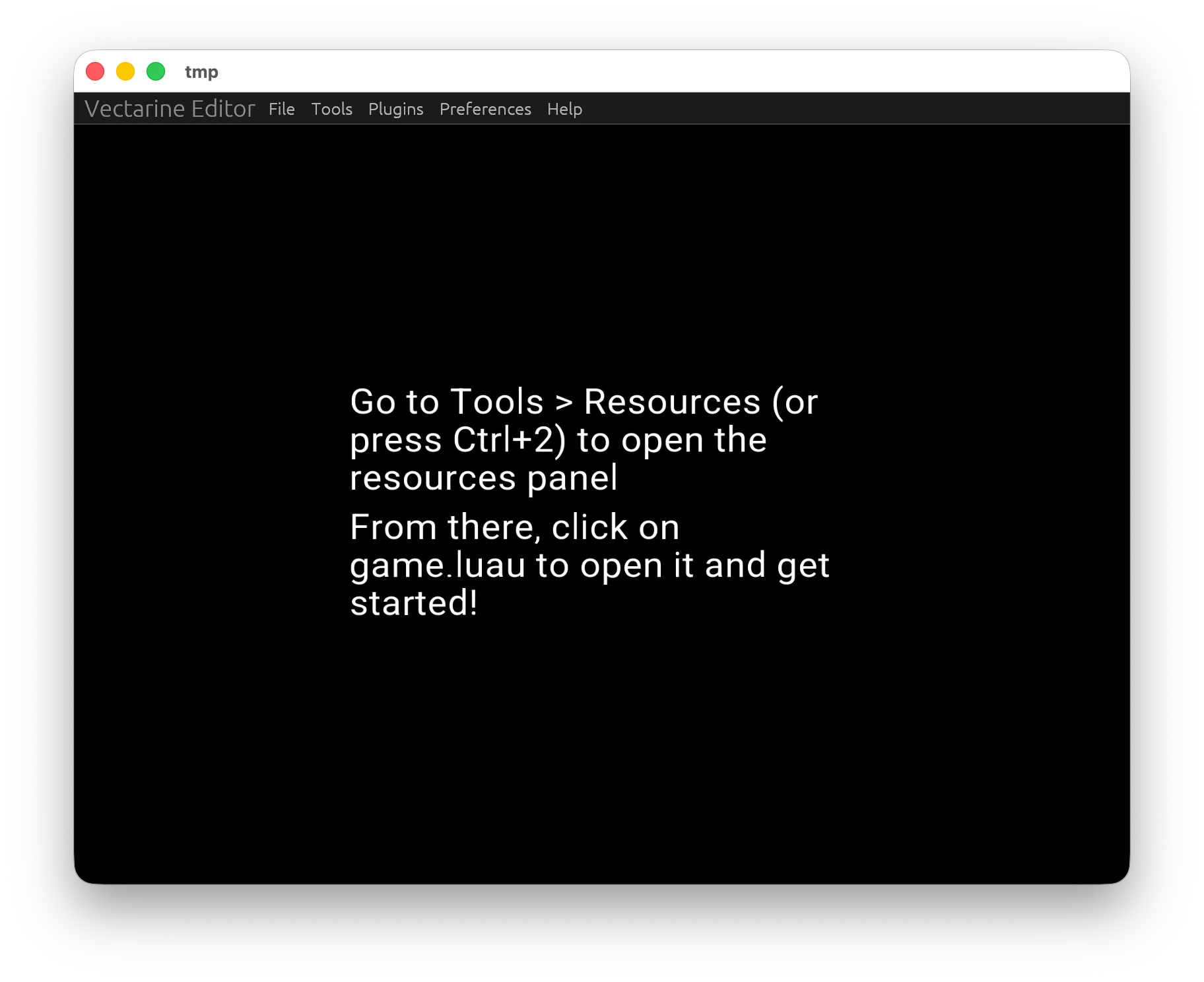
Once you created your project, you will see a black screen with the Vectarine logo and some (fake) loading text.
Then, you will see this screen:
The Resources window
Section titled “The Resources window”As the text says, you can open the resources window from the tools menu or with
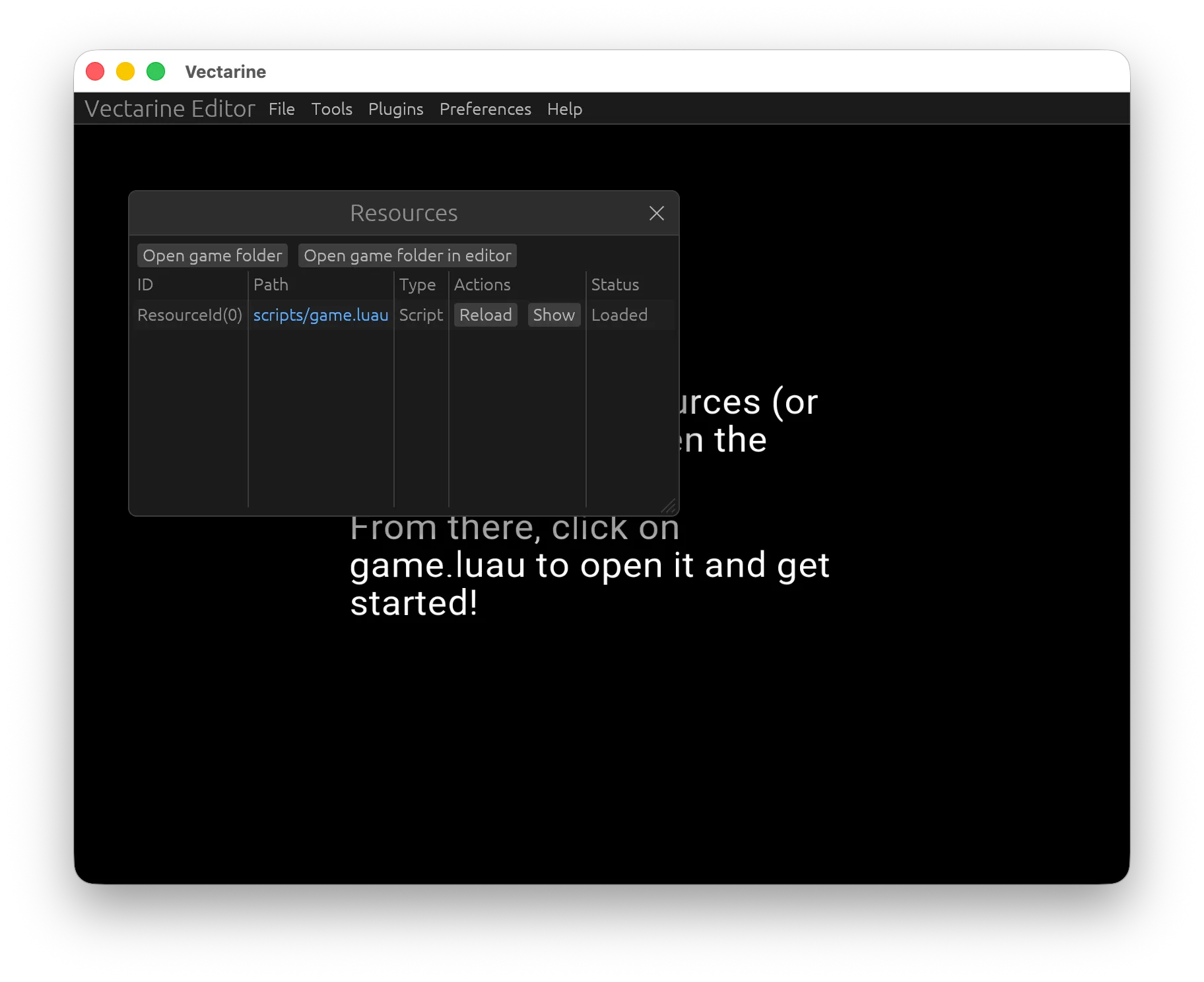
The window you opened is the “Resources” window. It shows you all the files in your project. You can use it to:
- Check if a file is missing, corrupted, or fails to load and see why in the “Status” column.
- Open your game folder in the file explorer
- Open your resources (images, sounds, scripts, etc…) in external editors (your preferred text editor, image editor, …) by clicking on the blue link.
How can I change my preferred text/image/sound editor program?
You can click on “Preferences” in the menu bar to open the preferences window. There, you can set your preferred text editor from the list.
For your preferred image or sound editor, you need to configure your OS to open the file type with your preferred program. This depends on your OS. On Windows for example, you can right-click on a file, select “Open with” and then “Choose another app” to select your preferred program and set it as default.
By default, an empty project has only one resource, the main script, scripts/game.luau. game.luau is the first file loaded by any Vectarine game. Its job is to set up the game
and load all of the other files needed.
You can click on the blue link to open the script in your default luau editor.
To continue, click on the Open game folder in editor button to open the whole folder in your editor and see the whole project structure.