
The ball
We’ve drawn a paddle, the next part is the ball. We’ll see how to make objects move automatically and how to handle collisions.
Drawing the ball and background
Section titled “Drawing the ball and background”Like the paddle, the ball is an object with a position and a size. But the ball also moves on its own, so it needs a third value: its velocity. The velocity is a vector that tells us in which direction the ball goes, and how fast. We won’t use it right away, but we put it in the object now.
const ballImage = loader.loadImage("textures/ball.png", false)
-- Below the Paddle objectlocal Ball = persist.onReload({ -- The ball starts a bit above the paddle position = vec.V2(0, -0.5), size = vec.V2(0.045, 0.045), -- Every second, the ball moves 0.6 units to the right and 1.1 units up velocity = vec.V2(0.6, 1.1),}, "ball")Then, we draw it inside drawGame, right after the paddle:
local function drawGame() graphics.clear(vec4.WHITE) paddleImage:draw(Paddle.position, Paddle.size) ballImage:draw(Ball.position, Ball.size)endIf you save now, you’ll see… almost nothing. The ball image is white, so it is very hard to see on a white background!
It’s time to replace our white background with a real one. There is a background.png image in the textures folder made for this.
We want the background to cover the whole screen. The bottom left corner of the screen is (-1, -1) and the screen is 2 units wide and 2 units tall,
so we draw the image at (-1, -1) with a size of (2, 2):
const backgroundImage = loader.loadImage("textures/background.png", false)
-- ...
local function drawGame() -- The background covers the whole screen, so we don't need graphics.clear anymore backgroundImage:draw(vec.V2(-1, -1), vec.V2(2, 2)) paddleImage:draw(Paddle.position, Paddle.size) ballImage:draw(Ball.position, Ball.size)endThings are drawn in the order of the code: the background first, then the paddle and the ball on top of it. If you draw the background last, it covers everything else!
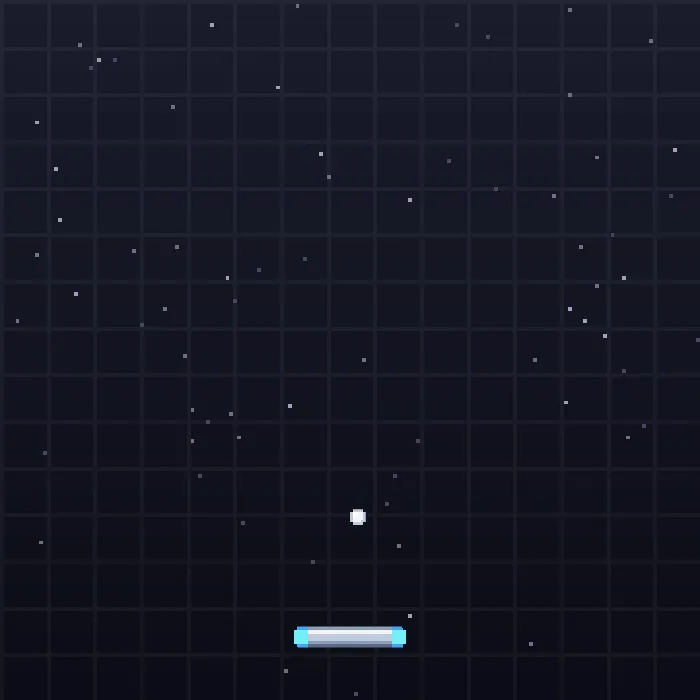
Our game is starting to look like a real game!
Making the ball bounce on the screen
Section titled “Making the ball bounce on the screen”To make the ball move, we add its velocity to its position on every frame. Like for the paddle, we multiply by deltaTime
so that the ball moves at the same speed no matter how many frames per second the game runs at.
We put this code in a new updateBall function, next to updatePaddle:
local function updateBall(deltaTime: number) -- Move the ball according to its velocity Ball.position += Ball.velocity:scale(deltaTime)end
function Update(deltaTime: number) updatePaddle(deltaTime) updateBall(deltaTime) drawGame()endBall.velocity:scale(deltaTime) multiplies both the x and the y of the velocity by deltaTime. Then, += adds the result to the position.
You can add and subtract vectors using + and - like numbers: vec.V2(1, 2) + vec.V2(3, 4) is vec.V2(4, 6).
When you save, the ball flies away to the top right… and never comes back. 😢
To make the ball bounce, we need to check if it touched a side of the screen, and if so, change its direction:
- If the ball goes past the left side, its
xvelocity must become positive, so it goes right. - If the ball goes past the right side, its
xvelocity must become negative, so it goes left. - If the ball goes past the top, its
yvelocity must become negative, so it goes down. - If the ball goes past the bottom, its
yvelocity must become positive, so it goes up.
math.abs is very handy here: math.abs(x) is always positive, and -math.abs(x) is always negative.
local function updateBall(deltaTime: number) Ball.position += Ball.velocity:scale(deltaTime)
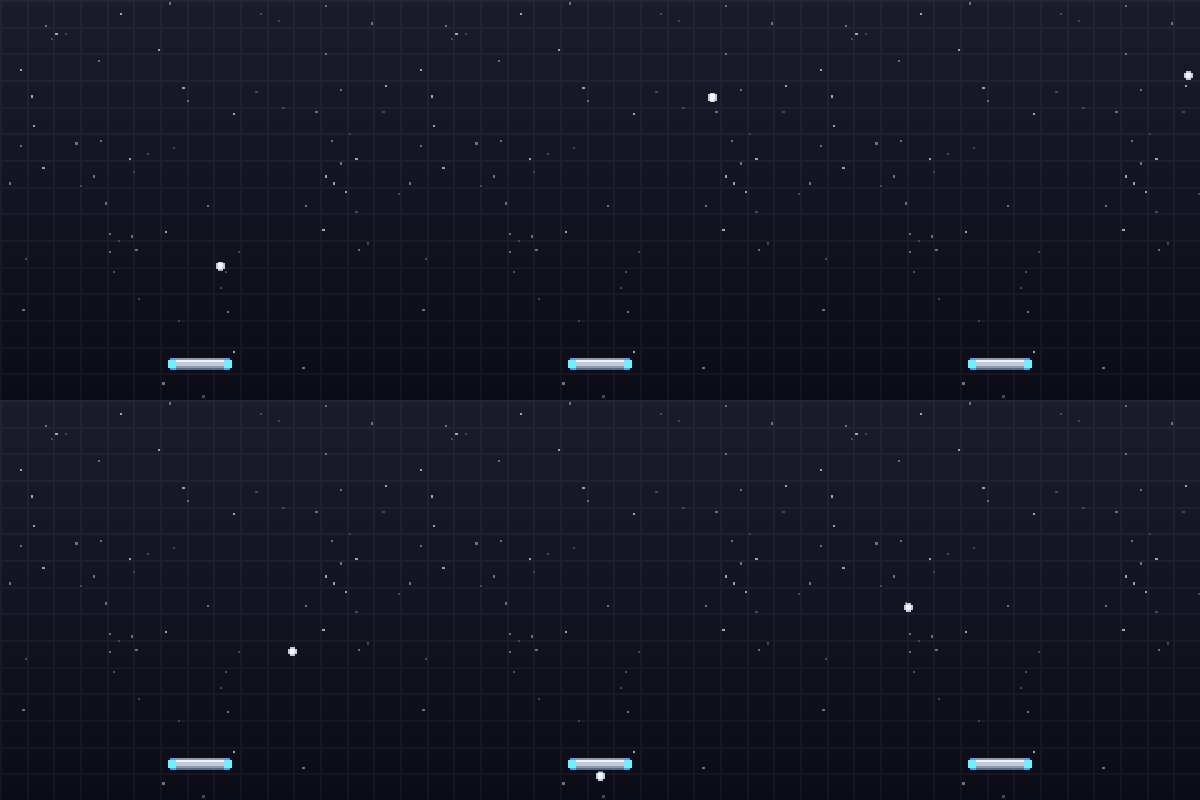
-- Left side if Ball.position.x < -1 then Ball.velocity.x = math.abs(Ball.velocity.x) end -- Right side. The position is the bottom left corner of the ball, so we add its width. if Ball.position.x + Ball.size.x > 1 then Ball.velocity.x = -math.abs(Ball.velocity.x) end -- Top side. Same thing, we add the height of the ball. if Ball.position.y + Ball.size.y > 1 then Ball.velocity.y = -math.abs(Ball.velocity.y) end -- Bottom side if Ball.position.y < -1 then Ball.velocity.y = math.abs(Ball.velocity.y) endendSave, and the ball bounces around the screen forever:
Paddle-ball collisions
Section titled “Paddle-ball collisions”The ball bounces on the walls, but it goes right through the paddle. We need to detect when the ball touches the paddle: this is called a collision.
Vectarine has a physics module to handle complex collision between various shapes, but for rectangle to rectangle collisions, we can keep things simple by handling it ourselves.
Two rectangles touch when all of these are true at the same time:
- The left side of the first is on the left of the right side of the second.
- The right side of the first is on the right of the left side of the second.
- The bottom of the first is below the top of the second.
- The top of the first is above the bottom of the second.
If any of these is false, there is a gap between the rectangles. We’ll need this check again for the bricks, so let’s make it a function:
-- Returns true if the rectangle at posA of size sizeA touches the rectangle at posB of size sizeB.-- Like for drawing, positions are the bottom left corners.local function overlaps(posA: vec.Vec2, sizeA: vec.Vec2, posB: vec.Vec2, sizeB: vec.Vec2): boolean return posA.x < posB.x + sizeB.x and posA.x + sizeA.x > posB.x and posA.y < posB.y + sizeB.y and posA.y + sizeA.y > posB.yendThis function returns a boolean (a true or false value), so we can use it directly inside an if. Put it above updateBall so that updateBall can use it.
Now, the ball shouldn’t bounce on the bottom of the screen anymore: if the player misses the ball, it’s lost! For now, when the ball falls below the screen, we put it back at its starting position. We replace the “Bottom side” check with this:
-- Bounce on the paddle if overlaps(Ball.position, Ball.size, Paddle.position, Paddle.size) then Ball.velocity.y = math.abs(Ball.velocity.y) end
-- The ball fell below the screen: put it back at the start if Ball.position.y < -1 then Ball.position = vec.V2(0, -0.5) Ball.velocity = vec.V2(0.6, 1.1) endTry it! You can now keep the ball in the air with the paddle.
Giving the player control
Section titled “Giving the player control”If you play a bit, you’ll notice that the ball always bounces with the same angle. The player can decide when the ball bounces, but not where it goes. Breaking the last brick in a corner would be very frustrating!
Most Breakout-style games solve this with a simple trick: the further from the center of the paddle the ball lands, the more it goes to the side.
- If the ball hits the center of the paddle, it goes straight up.
- If it hits the right end, it goes up and to the right.
- If it hits the left end, it goes up and to the left.
-- With the other constants, at the top of the fileconst ballSpeed = 1.3
-- ...
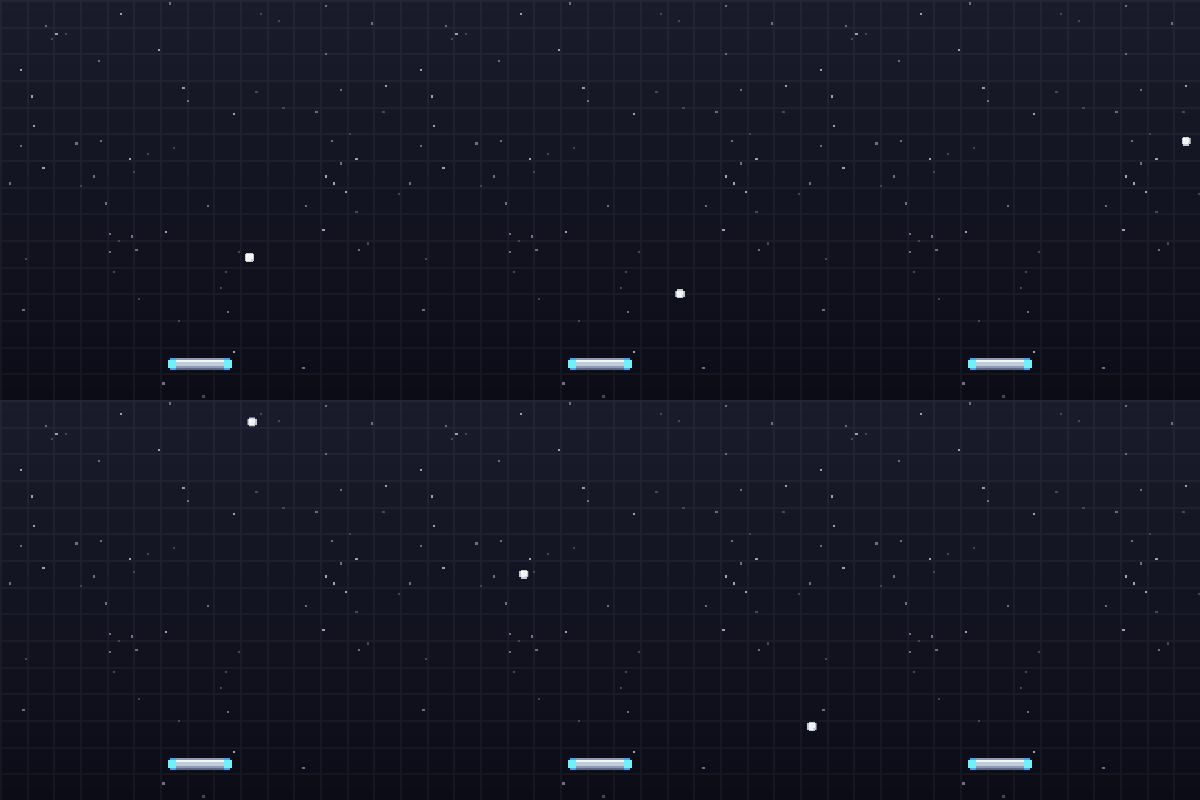
-- Bounce on the paddle, only when the ball is going down if Ball.velocity.y < 0 and overlaps(Ball.position, Ball.size, Paddle.position, Paddle.size) then local ballCenter = Ball.position.x + Ball.size.x / 2 local paddleCenter = Paddle.position.x + Paddle.size.x / 2 -- offset is -1 on the left end of the paddle, 0 in the center and 1 on the right end local offset = (ballCenter - paddleCenter) / (Paddle.size.x / 2) Ball.velocity = vec.V2(offset, 1):normalized():scale(ballSpeed) endvec.V2(offset, 1) is the new direction of the ball: always up, and more or less to the side depending on offset.
Vectors pointing to the side are longer than vectors pointing straight up, so the ball would go faster when bouncing on the ends of the paddle.
To avoid this, normalized() makes the vector exactly 1 unit long while keeping its direction, then scale(ballSpeed) sets its length to ballSpeed.
This way, the ball always moves at the same speed.
We also check that the ball is going down (Ball.velocity.y < 0) before bouncing. Otherwise, a ball that touches the paddle from the side
could bounce many frames in a row and get stuck inside it.
The whole code so far
Section titled “The whole code so far”Here is the whole game.luau file at this point, if you want to compare it with yours:
const debug = require("@vectarine/debug")const graphics = require("@vectarine/graphics")const vec4 = require("@vectarine/vec4")const vec = require("@vectarine/vec")const io = require("@vectarine/io")const persist = require("@vectarine/persist")const loader = require("@vectarine/loader")
const backgroundImage = loader.loadImage("textures/background.png", false)const paddleImage = loader.loadImage("textures/paddle.png", false)const ballImage = loader.loadImage("textures/ball.png", false)
const paddleSpeed = 1.8const ballSpeed = 1.3
local Paddle = persist.onReload({ position = vec.V2(-0.16, -0.85), size = vec.V2(0.32, 0.06),}, "paddle")
local Ball = persist.onReload({ position = vec.V2(0, -0.5), size = vec.V2(0.045, 0.045), velocity = vec.V2(0.6, 1.1),}, "ball")
-- Returns true if the rectangle at posA of size sizeA touches the rectangle at posB of size sizeB.local function overlaps(posA: vec.Vec2, sizeA: vec.Vec2, posB: vec.Vec2, sizeB: vec.Vec2): boolean return posA.x < posB.x + sizeB.x and posA.x + sizeA.x > posB.x and posA.y < posB.y + sizeB.y and posA.y + sizeA.y > posB.yend
-- Moves the paddle using the arrow keyslocal function updatePaddle(deltaTime: number) if io.isKeyDown("right") then Paddle.position.x += paddleSpeed * deltaTime end if io.isKeyDown("left") then Paddle.position.x -= paddleSpeed * deltaTime end Paddle.position.x = math.clamp(Paddle.position.x, -1, 1 - Paddle.size.x)end
-- Moves the ball and makes it bounce on the walls and on the paddlelocal function updateBall(deltaTime: number) Ball.position += Ball.velocity:scale(deltaTime)
-- Left, right and top sides if Ball.position.x < -1 then Ball.velocity.x = math.abs(Ball.velocity.x) end if Ball.position.x + Ball.size.x > 1 then Ball.velocity.x = -math.abs(Ball.velocity.x) end if Ball.position.y + Ball.size.y > 1 then Ball.velocity.y = -math.abs(Ball.velocity.y) end
-- Bounce on the paddle, only when the ball is going down if Ball.velocity.y < 0 and overlaps(Ball.position, Ball.size, Paddle.position, Paddle.size) then local ballCenter = Ball.position.x + Ball.size.x / 2 local paddleCenter = Paddle.position.x + Paddle.size.x / 2 -- offset is -1 on the left end of the paddle, 0 in the center and 1 on the right end local offset = (ballCenter - paddleCenter) / (Paddle.size.x / 2) Ball.velocity = vec.V2(offset, 1):normalized():scale(ballSpeed) end
-- The ball fell below the screen: put it back at the start if Ball.position.y < -1 then Ball.position = vec.V2(0, -0.5) Ball.velocity = vec.V2(0.6, 1.1) endend
-- Draws the whole gamelocal function drawGame() backgroundImage:draw(vec.V2(-1, -1), vec.V2(2, 2)) paddleImage:draw(Paddle.position, Paddle.size) ballImage:draw(Ball.position, Ball.size)end
function Update(deltaTime: number) updatePaddle(deltaTime) updateBall(deltaTime) drawGame()endTaking a step back
Section titled “Taking a step back”We now have a ball that moves on its own, bounces on the walls and on the paddle. This is already a small game you can play!
We’ve learned:
- How to make an object move on its own using a velocity.
- How to add vectors together and scale them.
- How to draw a background that covers the whole screen, and why the drawing order matters.
- How to make something bounce using
math.abs. - How to detect a collision between two rectangles.
- How to change the direction of a vector without changing its length using
normalizedandscale.
Look at the structure of our code: first we create the objects of our game, then on every frame, we update them and we draw them. Almost every game you’ll ever play is built this way, from tiny puzzle games to huge open worlds. This loop is called the game loop.
In the next part, we’ll add the bricks, and give the ball something to break!